

I like to get trackouts on all of my tracks. The trackout is the project, minus the mastering. It is a zip package of all of the audio files from the project. Lets look at trackouts and talk about whats good about them.
Export
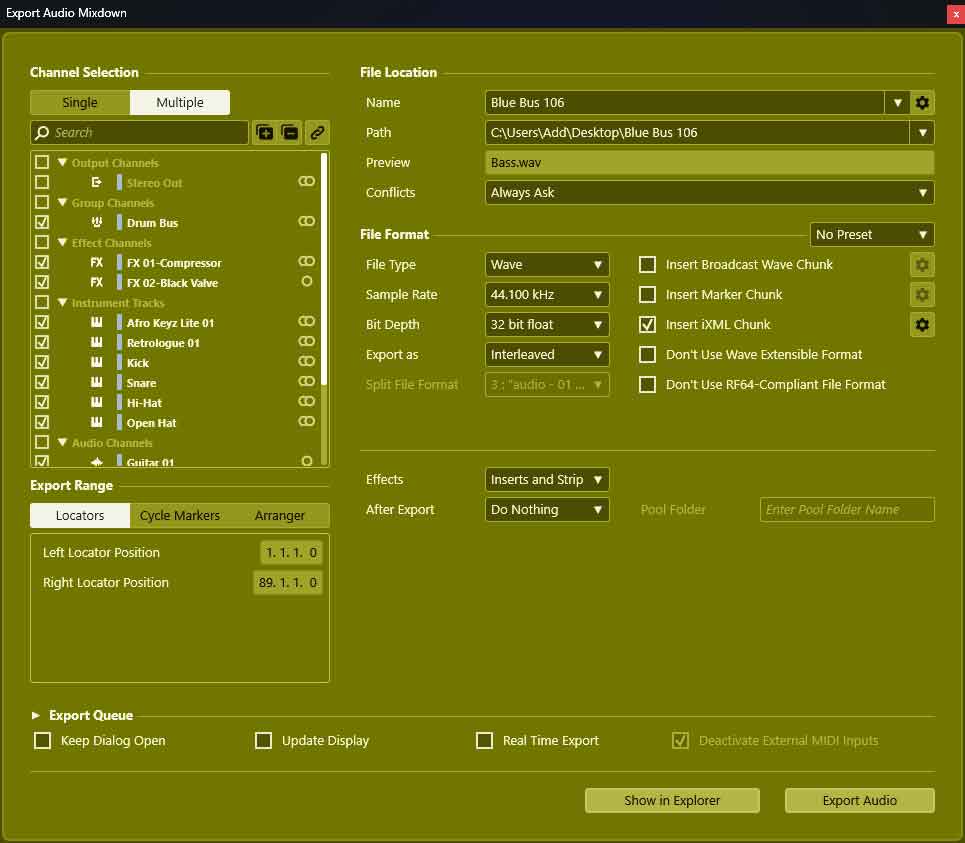
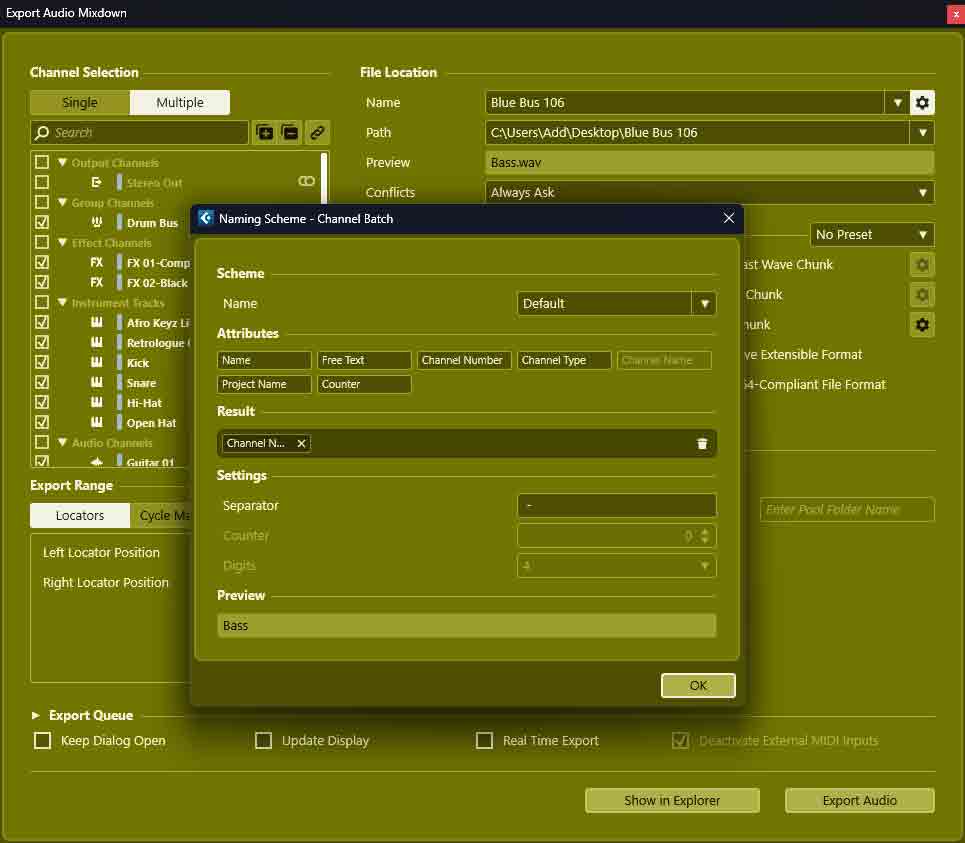
Once we’ve finished the track, exported the mix wav and mastered mp3 we can move onto the trackout package. Lets click multiple in the export window and select all of the channels except stereo out and the tags. Now lets click the setting clog wheel icon next to name and set it to only show the channel name. Lets create a folder with the project name and tempo, then we can click to export it there.
After its done exporting the audio tracks into the folder we can zip the package and then delete the original package. It might also be worth checking that zip folder, that it has all the files.
Publish Trackout

We can publish this package on Beatstars and we can save it locally as a backup. Our trackout is user friendly because it shows the tempo, has channel names only and doesn’t have stereo out or tags.
Use Trackout
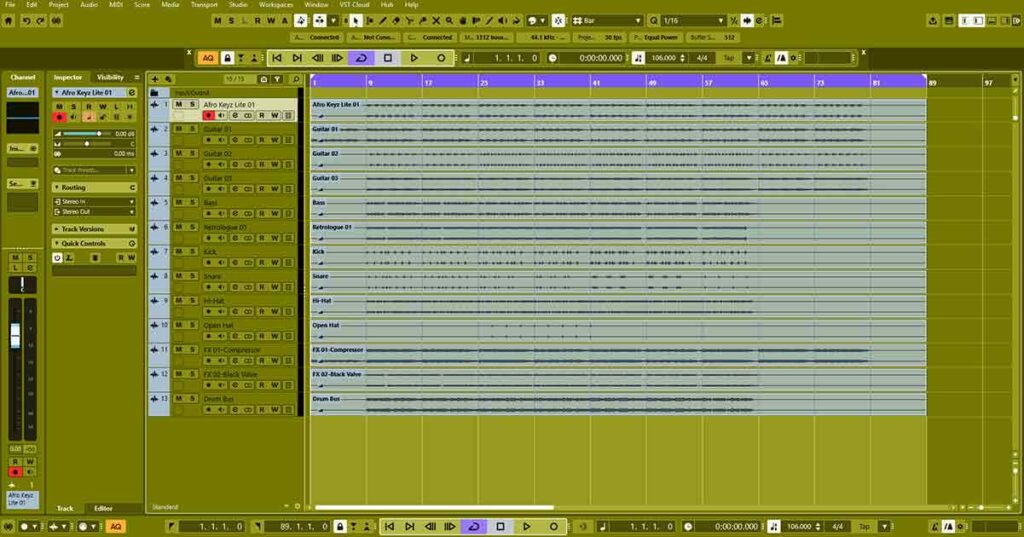
First lets look at the tempo on our stems package. Then lets open our audio workstation and set the tempo. Now we can drag all of the audio files into the project and start working on the track. Its locked to the tempo so we can change the song structure and record more instruments. We can add vocals and then master the track.
Stems vs Project
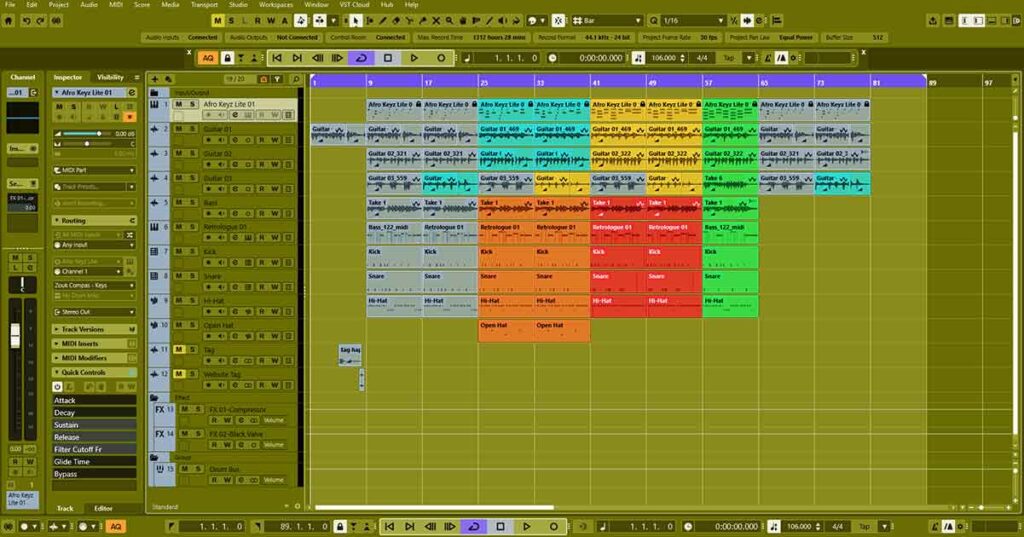
The stems sound the same as the original project but it doesn’t have any plugins on it. All of the VST instruments and effects plugins are now wav files. Each track channel is one audio event whereas there were many separate blocks of audio and midi on the original project.
About the Author