We have some audio and midi channel tracks. Next to them we have some blocks of audio and midi data. There are a lot of things we can learn about the track just by looking at the boxes. Lets look at blocks and talk about whats great about them.
Audio Blocks
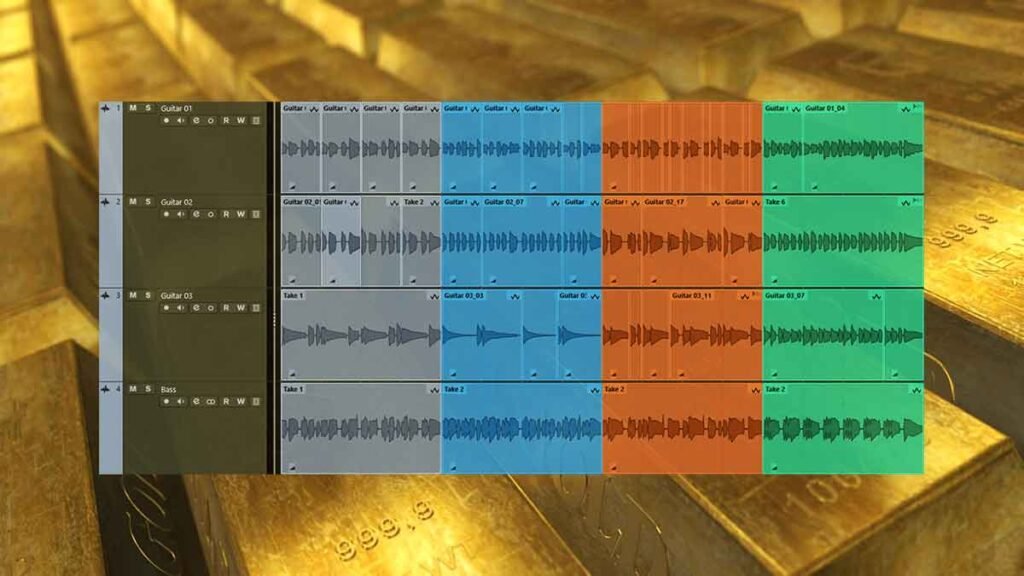
We recorded some guitar and bass tracks. These boxes have waveforms so we can see what the levels are like straight away. The colour coding helps us keep everything organised. We can move them around fast because they’re in line with the grid and keep them in time with the click.
The tracks have audiowarp icons because we audiowarp quantised them. The audio boxes are good. So we can move onto the next things.
Editing Audio Blocks
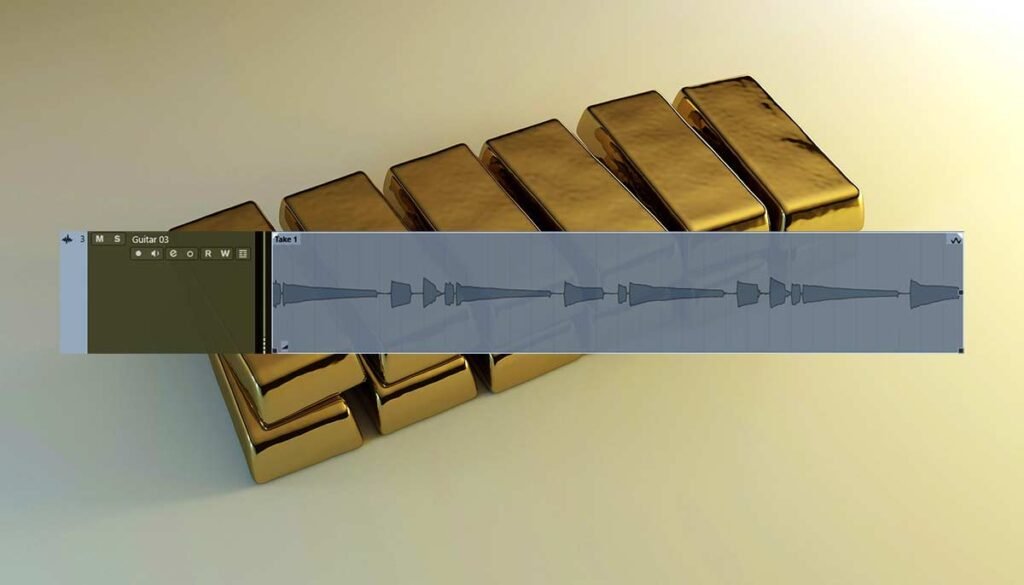
And we can also edit the audio straight from the block. We can adjust volume with the volume icon on the bottom left corner. We can also add fade in and fade out from the top corners of the box. With the pencil tool we can write lines on the box to adjust the gain of individual notes.
Midi Blocks
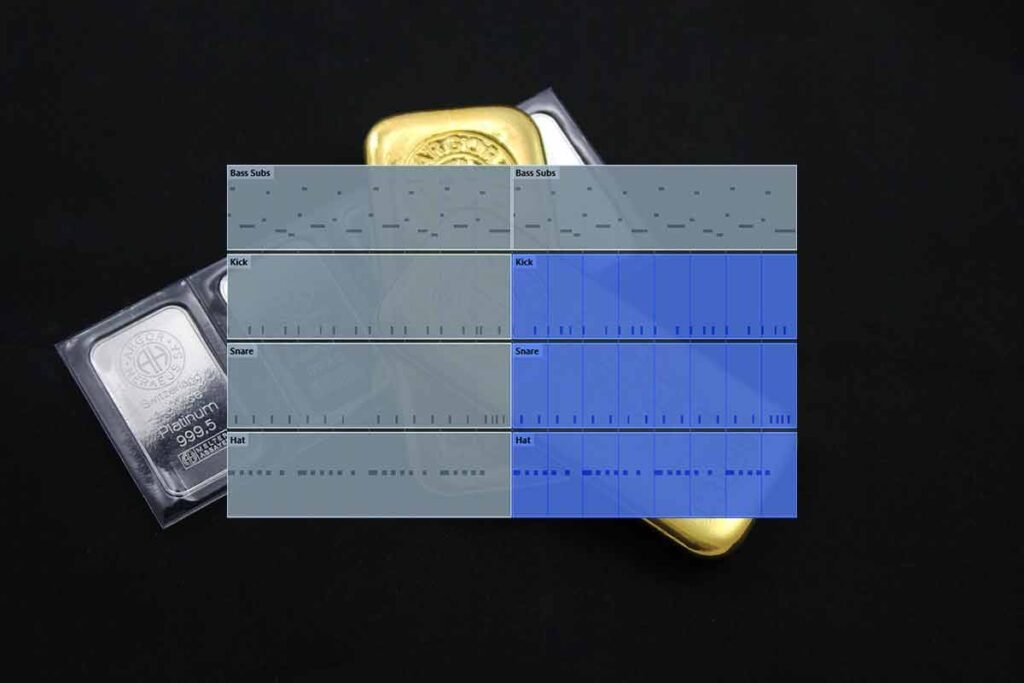
We colour coded them like the audio blocks but they look a bit different. Rather than having a waveform they show the midi data. If we click into the block we can move the notes around very quickly and easily. We can adjust things like velocity and velocity variance.
They’re also different to audio boxes because they don’t have the adjustable volume and fading controls.
Playlist
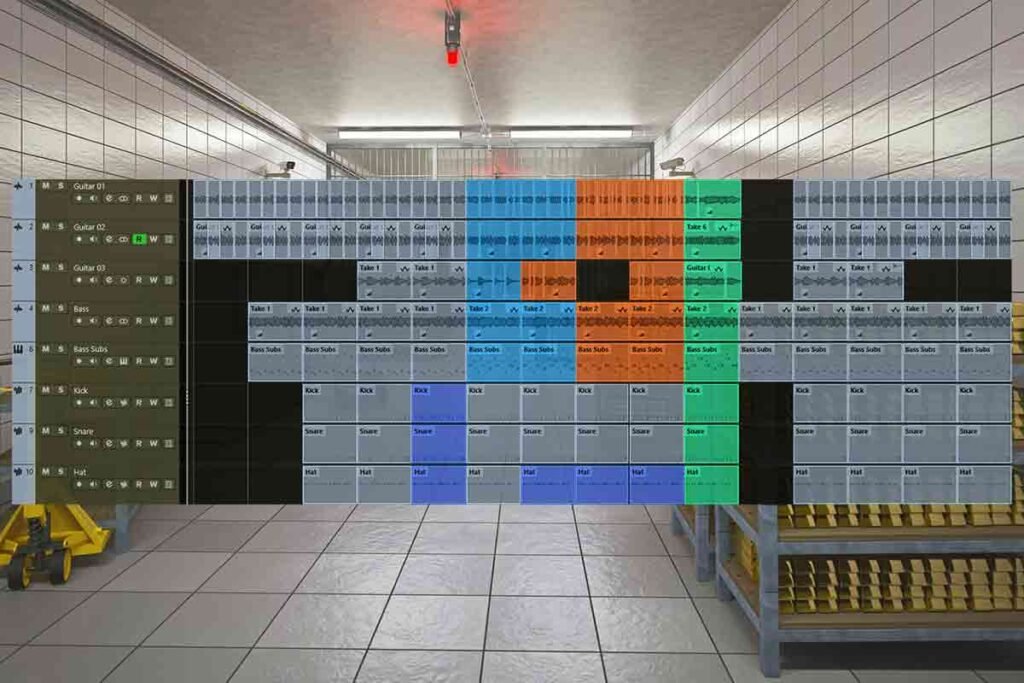
Great we have duplicated blocks and organised them into a playlist. The track looks good and sounds good. We cut a beat of the drums. That is a dynamic change. We started the track with just 2 blocks and then introduced more as it went on.
About the Author